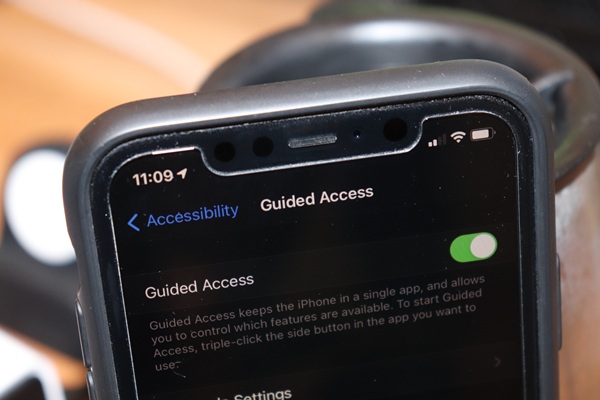
The hidden iPhone privacy feature everyone should be using before lending their phone
As smartphones increasingly become repositories of personal conversations, financial records, work information and digital memories, a little-known iPhone feature called Guided Access is gaining attention among users seeking greater privacy when lending their devices to others.
The feature, built into Apple’s accessibility settings, allows iPhone users to temporarily lock their device into a single application, preventing anyone borrowing the phone from navigating into other apps, messages, photos or notifications.
Its growing relevance reflects changing concerns around digital privacy, particularly as smartphones now contain sensitive personal and professional information far beyond traditional phone functions.
Many users say the anxiety associated with handing over an unlocked smartphone has become a common modern-day concern, even during harmless situations such as allowing a friend to watch a video, place a food order, check directions or make a quick call.
Guided Access addresses that concern by restricting the borrowed device to one app at a time. Once activated, users cannot swipe into other applications or access private content unless the owner unlocks the restriction using Face ID or a passcode.
Technology observers say the feature is increasingly useful in a period where accidental privacy breaches often arise not from cybercrime or hacking, but from everyday social interactions.
The feature can be activated through the iPhone settings menu by selecting Accessibility, then Guided Access, before enabling the option and setting a passcode or Face ID authentication.
Once configured, users simply open the app they want someone else to access and triple-click the side button to activate Guided Access. The feature immediately locks the device within that application.
In addition to restricting navigation, Guided Access also offers further controls that allow users to disable touch input, block sections of the screen, prevent keyboard access or disable hardware buttons such as volume controls.
Privacy advocates argue that such features are becoming increasingly important as smartphones evolve into digital vaults storing banking apps, passwords, health information, work emails and personal media.
The feature has also been praised for helping users avoid awkward social situations by creating boundaries without appearing distrustful when lending a phone to another person.
Technology analysts note that while discussions around online privacy often focus on hackers, malware and data breaches, many privacy concerns emerge during routine interactions where devices are casually shared among friends, relatives or colleagues.
As digital dependency deepens globally, tools such as Guided Access are being viewed as practical safeguards that offer users greater confidence and control over their personal information during everyday interactions.
How to turn on Guided Access;
- Open the Settings app.
- Head to Accessibility.
- Scroll down and tap Guided Access.
- Turn the feature on.
- Set a passcode or enable Face ID for authentication.